Log in
- Go to the Allyant AI Auto Remediation login page.
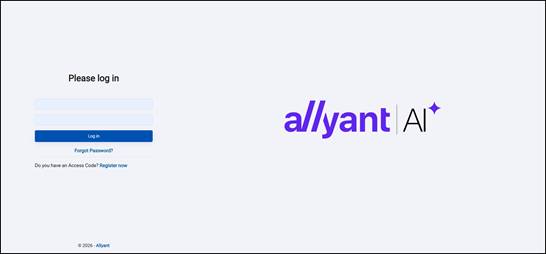
- Enter your email address and password, then click Log in.
- Forgot your password? Click Forgot Password?
- New user with an access code? Click Register Now.
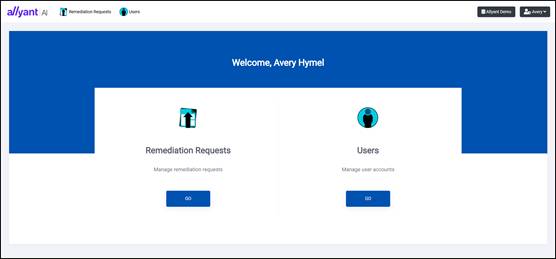
- The Welcome page opens.
Create a remediation request
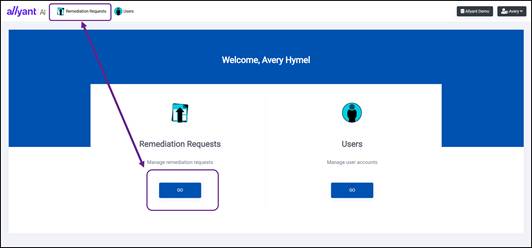
- Under Remediation Requests, click GO. You can also click Remediation Requests in the top menu.
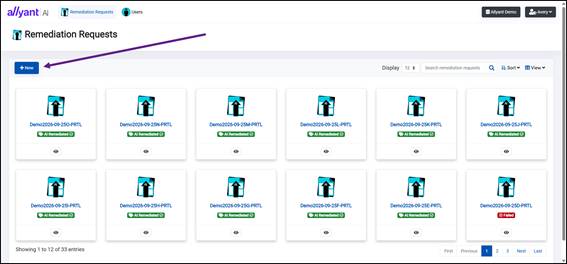
- Click + New.
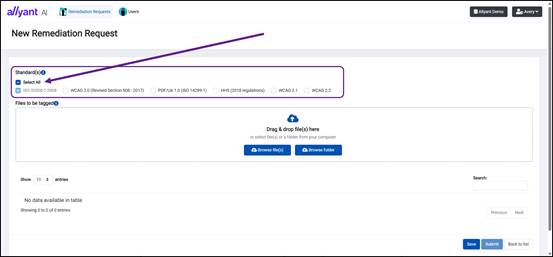
- Under Standard(s), select the standards to check your files against, or click Select All. ISO 32000-1:2008 is always included.
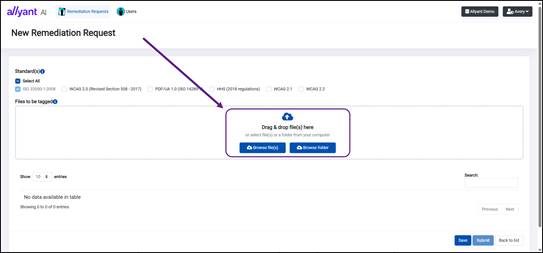
- Under Files to be tagged, add your PDFs. Drag and drop them into the box, or click Browse file(s) or Browse folder.
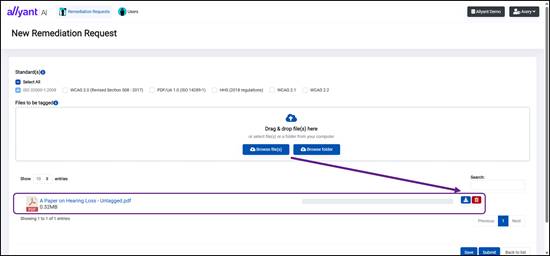
- Check that your files appear in the list. To remove a file, click the trash icon.
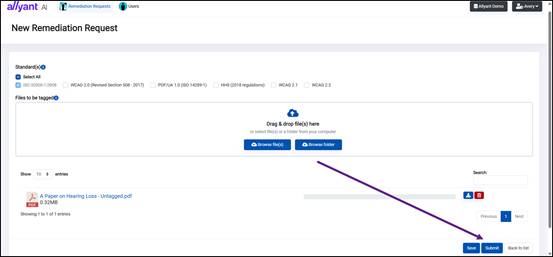
- Click Submit to send your files for remediation. To save the request and submit it later, click Save.
Download your results
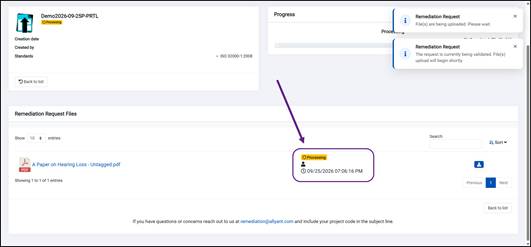
- Your request opens with a Processing status. Wait for processing to finish.
- When the status changes to AI Remediated, use the icons next to each file:
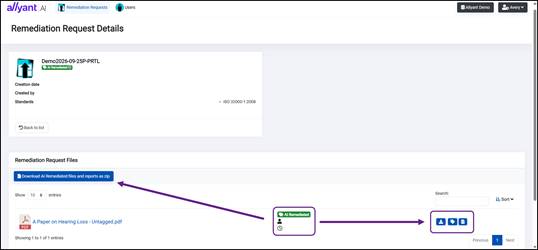
- Download icon: downloads your original file.
- Tag icon: downloads the AI-remediated (tagged) file.
- Report icon: downloads the Accessibility Compliance Report for that file.
- To download all remediated files and reports at once, click Download AI Remediated files and reports as zip.
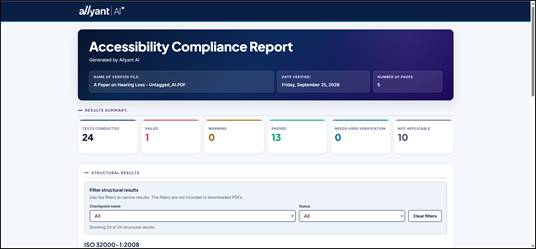
- The Accessibility Compliance Report summarizes how many tests passed, failed, raised warnings, need your verification, or didn't apply. It also includes detailed results for each standard, which you can filter.
Manage users (Organization Admins only)
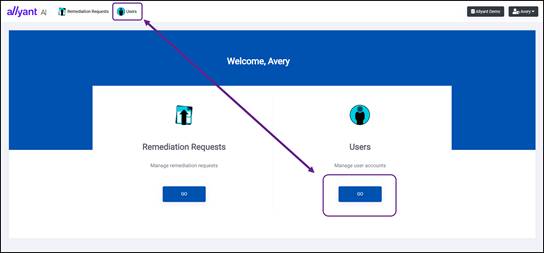
- On the Welcome page, click GO under Users. You can also click Users in the top menu.
- From the Users page, you can:
- Edit an existing user's details.
- Remove a user from your organization.
Need help?
Email support@allyant.com with your project code in the subject line.
Was this article helpful?
That’s Great!
Thank you for your feedback
Sorry! We couldn't be helpful
Thank you for your feedback
Feedback sent
We appreciate your effort and will try to fix the article