Overview
Properly tagged links are essential for creating accessible PDF documents that are compliant with PDF/UA standards. A correctly tagged link enables assistive technology users to identify, navigate, and activate hyperlinks just as sighted users do.
A properly tagged link consists of two required components:
- The linked text (or other linked content visible in the document)
- The link annotation, which is the interactive object that performs the action (such as opening a webpage, sending an email, or navigating to another location within the document)
Note: A Link tag cannot exist at the root level of the Tags tree. It must always be contained within another structural tag, such as a Paragraph, List Body, Table Cell, Caption, or similar element.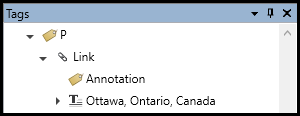
Prerequisites
Use this procedure when:
- Creating accessible hyperlinks in a PDF.
- Correcting improperly tagged links.
- Tagging previously untagged link annotations.
- Remediating linked graphics, logos, or QR codes.
Before beginning:
- Ensure the document already contains functional hyperlinks or annotations.
- Verify that the reading order has been established.
- Enable selection of untagged content if annotations are not currently visible in the Tags tree.
Steps to Follow
Method 1: Let CommonLook Create the Link Automatically
When CommonLook recognizes both the linked text and its annotation, it can automatically create the correct Link structure.
Option A – Create a Link Tag
- Highlight the linked text and its annotation in the Physical View.
- Create a Linktag.
- Insert Tag ribbon
- Keyboard shortcut: Ctrl + K
- Move the Link tag into the correct structural parent if necessary.
- Open the Link tag and verify it contains:
- The linked text
- The annotation
- If a Path (the underline beneath the hyperlink) appears inside the Link tag, artifact or delete it.
Option B – Create a Paragraph Tag
If the hyperlink is part of a paragraph:
- Highlight the entire paragraph.
- Create a Paragraph tag.
- Keyboard shortcut: Ctrl + 7
- Verify that CommonLook automatically created a Link tag within the paragraph.
- Open the Link tag and confirm it contains:
- The linked text
- The annotation
- Remove any Path object if present.
Method 2: Manually Create the Link Tag
If CommonLook does not correctly structure the link:
1. Select Both Components by highlighting in the physical view
- the linked text
- the annotation
Both must be selected before creating the Link tag.
Tip: If the annotation is untagged, enable selection of untagged content from the Settings tab.
2. Create the Link Tag by Selecting "Link" from the Insert Tag ribbon.
3. Ensure the link tag is in the cvorrect reading order and NOT at the root level.
4. Remove Any Path Objects
Tagging Links That Span Multiple Lines
Sometimes a single hyperlink spans two or more lines.
In these situations:
- Create one Link tag.
- Include:
- all linked text
- all annotations
The order inside the Link tag may be either Text followed by annotations OR Annotations followed by text
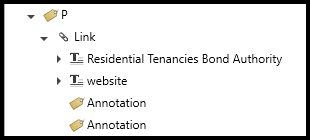
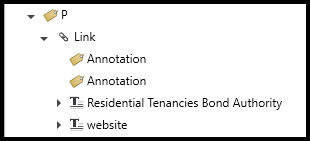
Either approach is acceptable, provided the reading order remains correct.
Update the Tab Order
After creating or repairing links:
- Update the document's Tab Order.
This ensures keyboard users navigate the document correctly.
Refer to the Tab Order article for additional guidance.
Tagging Internal Links
Internal navigation elements include:
- Tables of Contents
- Footnote references
- Cross-references
- Other links that move within the same document
These should be placed inside Reference tags. If the internal reference is clickable:
- Place a Link tag inside the Reference tag.
- The Link tag should contain:
- the linked text
- the annotation
Tagging Linked Graphics
Linked Logos or Images
If an image simply links to an external website:
- Create a Link tag.
- Place only the annotation inside the Link tag.
- Artifact or untag the graphic.
- Add Alternative Text to the Link tag describing:
- the graphic
- the destination
Linked QR Codes
QR codes should not be artifacted.
- Tag the QR code as a Figure.
- Add appropriate Alternative Text describing the QR code.
- Create a Link tag containing the annotation only.
This allows assistive technology users to know the QR code exists while maintaining the interactive functionality.
Frequently Asked Questions
Can a Link tag exist by itself at the root of the Tags tree?
No. A Link tag must always be contained within another structural tag such as a Paragraph, Table Cell, Caption, List Body, or similar element.
What is a link annotation?
A link annotation is the interactive object that performs the action associated with a hyperlink, such as opening a webpage, launching an email, or navigating to another location within the document.
What should I do if CommonLook does not automatically create the Link tag?
Manually select both the linked text and the annotation, create a Link tag, and place it within the correct structural parent.
What is the difference between a Link tag and a Reference tag?
A Link tag is used for hyperlinks that point to external destinations, such as websites or email addresses.
A Reference tag identifies internal references within the same document, such as linked tables of contents, cross-references, or footnotes. If the internal reference is clickable, it should contain a Link tag with the annotation.
How should linked graphics be tagged?
For linked logos or decorative images, artifact the graphic and create a Link tag containing the annotation. Provide Alternative Text on the Link tag describing both the image and its destination.
Should QR codes be artifacted?
No. QR codes often contain important information beyond their link destination. Tag the QR code as a Figure with appropriate Alternative Text, and create a separate Link tag containing the annotation.
Why do I need to update the Tab Order after tagging links?
Updating the Tab Order ensures keyboard users encounter links in the intended sequence and can navigate the document efficiently.
Related Articles
How to update Tab Order (CommonLook PDF)
Was this article helpful?
That’s Great!
Thank you for your feedback
Sorry! We couldn't be helpful
Thank you for your feedback
Feedback sent
We appreciate your effort and will try to fix the article