Product
Simplified Editor (Web-based CL PDF)
Feature
Images
Overview
In an accessible PDF, graphical elements such as photos, images, graphs, or logos should be determined to be either "contextually important" or "decorative."
In short, something that is important to the content of the document needs to be marked as an Image, and given appropriate Alternate text so that someone using assistive technology can properly understand the graphic.
If, however, the image is purely decorative and therefore carries no contextual importance, the graphic can be left out of the final PDF's Tags tree, resulting in the reader not being forced to hear it. In the Simplified Editor, this decision is made by either marking it as an Image and assigning an Image Description, or leaving it unmarked entirely.
There is another scenario where you might want to mark the image correctly, but "ignore" it in the dialog box, which will be explained in the "Frequently Asked Questions" section later in this article.
Prerequisites
Images should be marked whenever a document has graphical elements in it. These elements will usually be automatically detected and marked as Images by the Simplified Editor upon upload, but we still need to manually progress through the Images to ensure that the correct Image Descriptions are being used to accurately describe the content.
Steps to Follow
If the image was not identified
- Click and drag to draw a boundary around the image. Make sure the boundary includes the entire image without including nearby headings, paragraphs, captions, or other page elements.
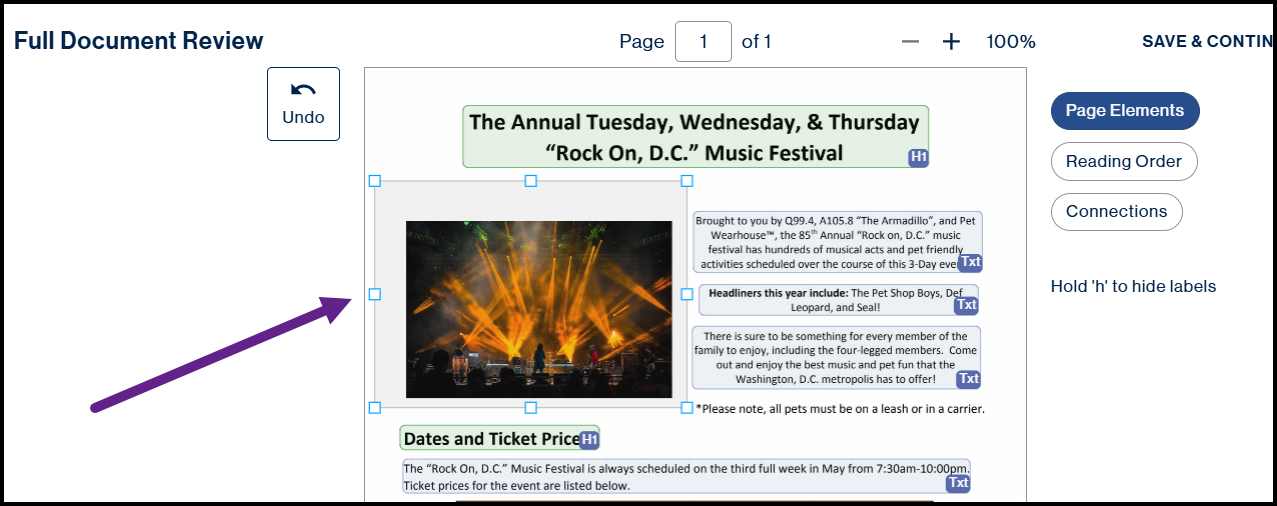
- Release the mouse button to display the element type menu.
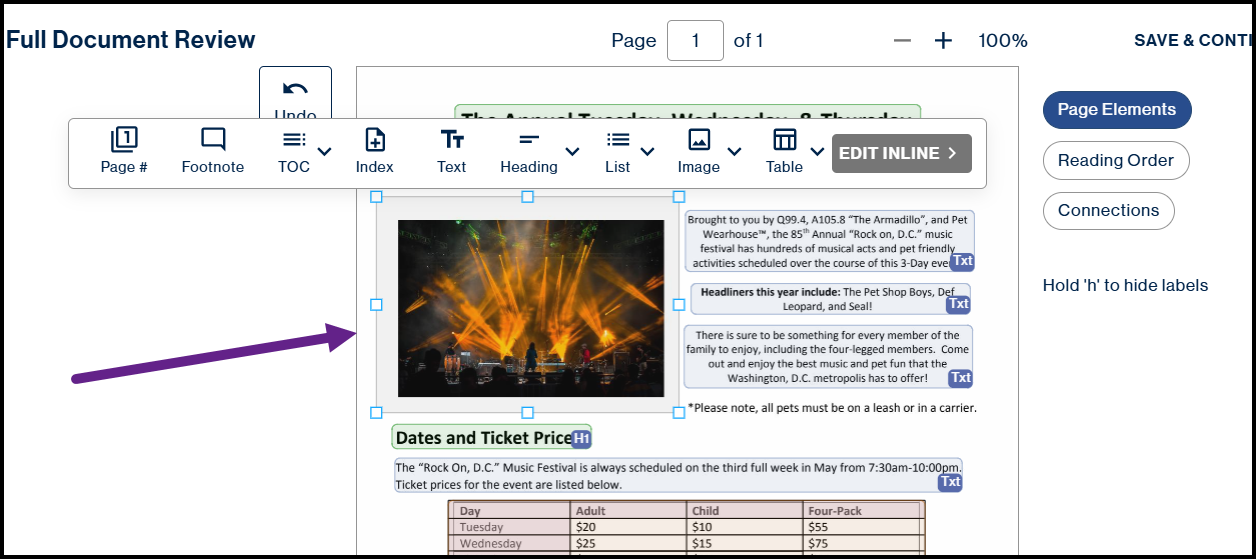
- Select Image.
- The image is now marked as an image within the Simplified Editor.
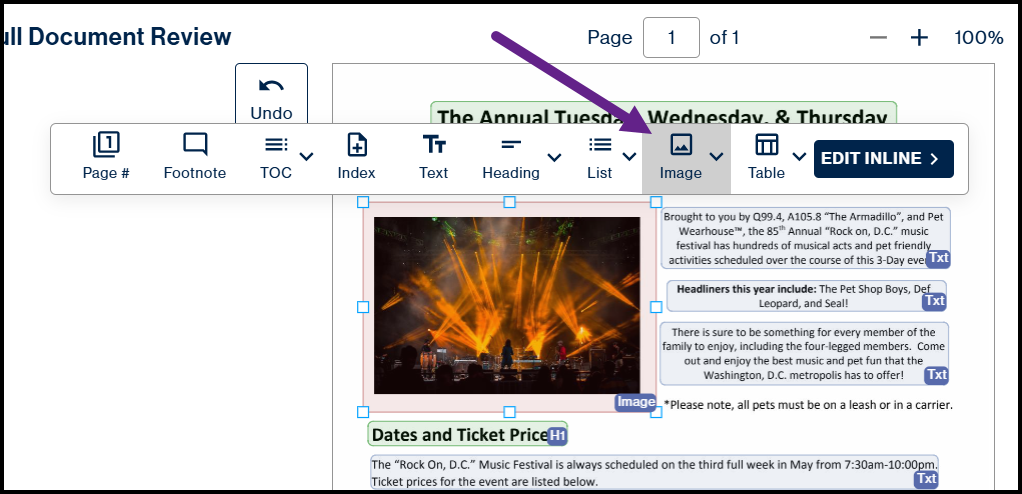
If necessary, resize the boundary by selecting it and dragging the resize handles until it accurately surrounds the image. - Review the image description.
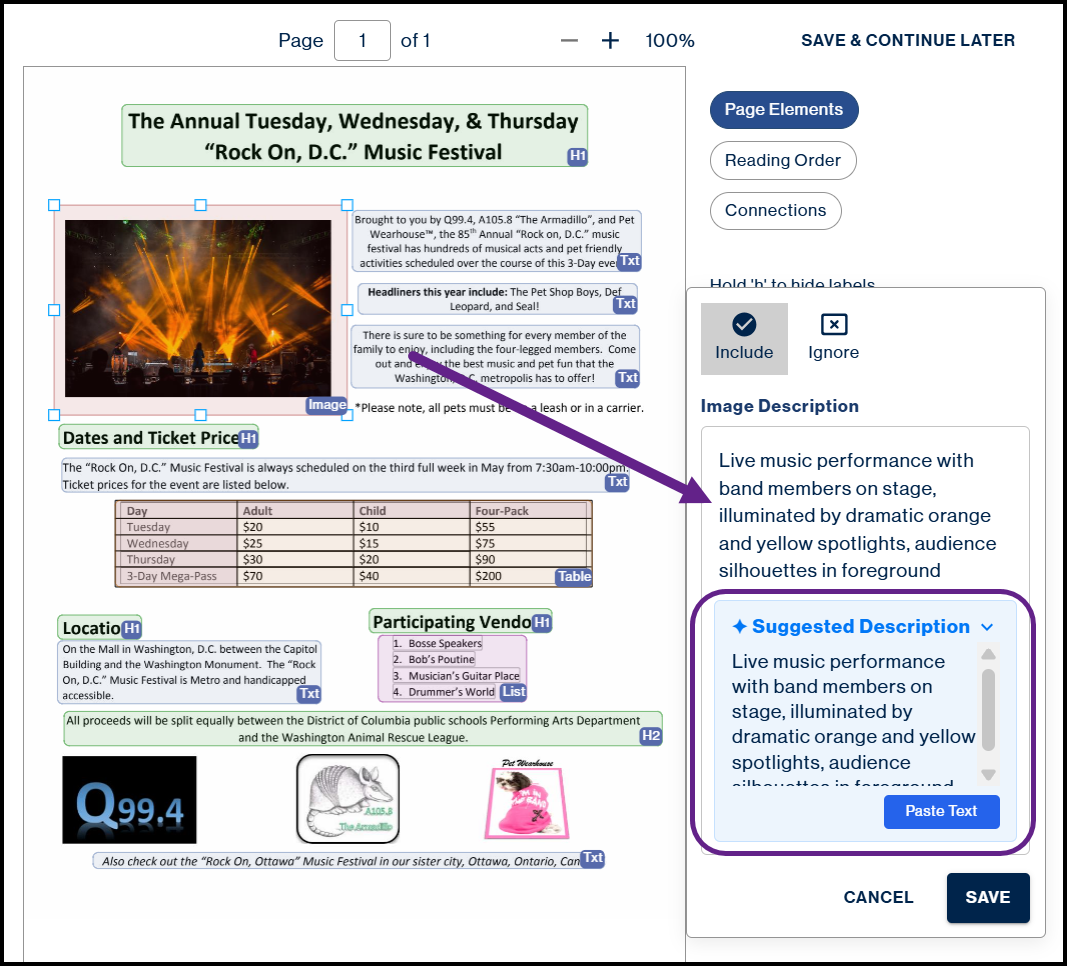
A suggested image description may be generated automatically. Edit the description as needed to ensure it accurately describes the image. For more information, check out the article on How to Generate Alt Text (Simplified Editor).
If the image was already identified
- Select the identified image. Verify that the boundary completely surrounds the image. Make sure the boundary includes the entire image but does not include captions, headings, paragraphs, or other nearby content. If necessary, resize the boundary by dragging the resize handles.
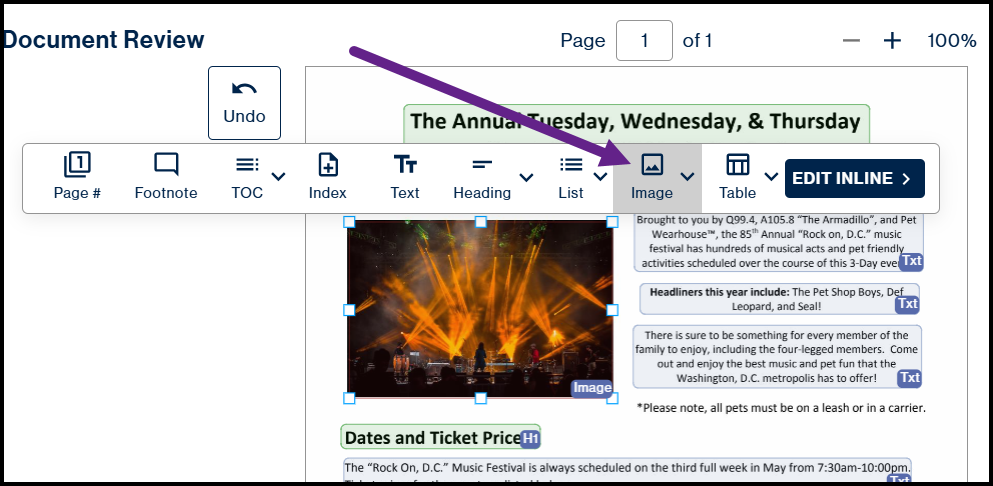
- Review the image description.
- Edit the description as needed to accurately describe the image.
If the image is purely decorative or does not convey meaningful information
- If the image is decorative and does not communicate meaningful information, simply delete the element entirely, or hit "Ignore" in the image dialog box.
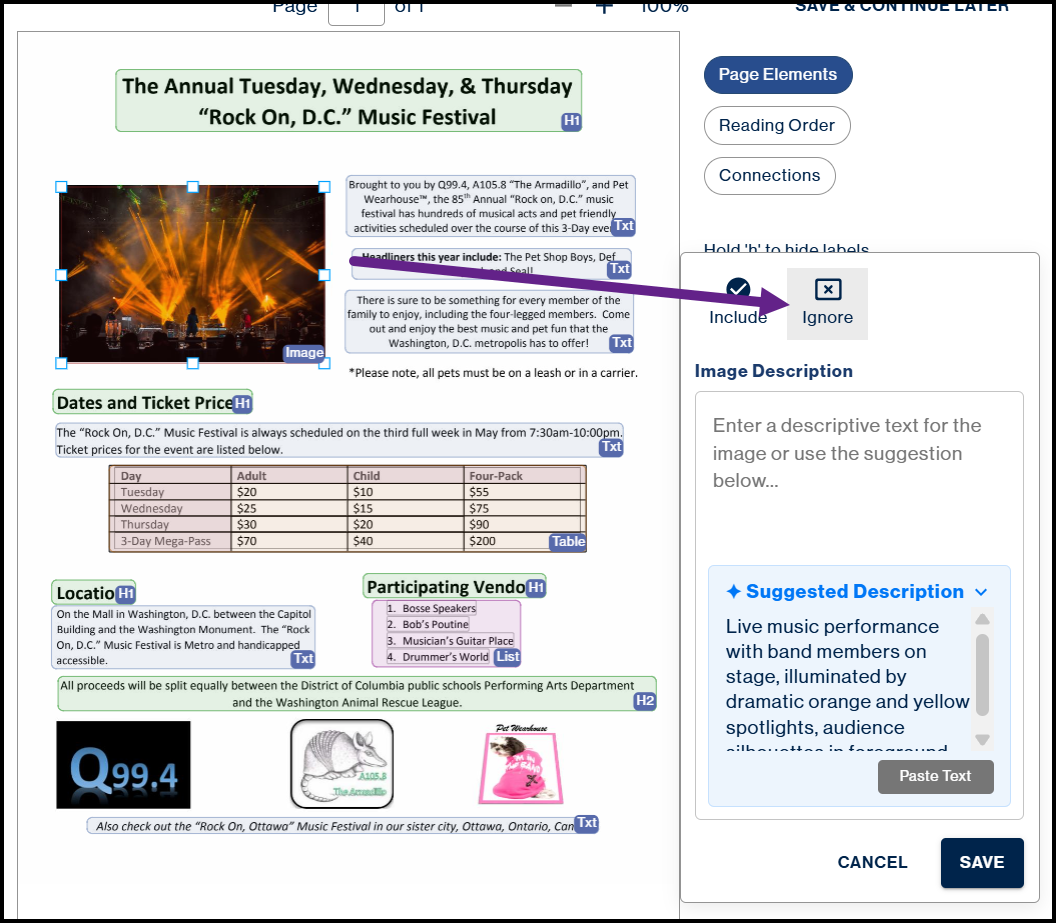
For more information on if you should delete the element or hit "Ignore," check out the "Frequently Asked Questions section of this article.
Common Problems
The image was not detected automatically.
Draw a boundary around the image and select Image to manually identify it.
The boundary includes other content.
Resize the boundary so it includes only the image. Captions, headings, and surrounding text should be marked separately.
Part of the image is outside the boundary.
Resize or redraw the boundary so the entire image is included.
The suggested image description is inaccurate.
First, verify that the boundary accurately surrounds the image. If necessary, adjust the boundary and review the new suggestion. You can also edit the description manually.
Frequently Asked Questions
Does it matter if I mark an image and choose Ignore instead of leaving it unmarked?
For an accessible PDF, no. Marking an image and choosing Ignore produces the same result as leaving the image unmarked. However, if you are creating other output formats, such as Braille, there is a difference. For this reason, we recommend marking every image as an Image and then selecting Ignore for any images that are purely decorative or do not provide meaningful information. This approach supports all output types while ensuring decorative images are handled appropriately.
Should captions be included inside the image boundary?
No. The boundary should surround only the image. Captions should be marked separately.
How much white space should be included around an image?
A small amount of white space is acceptable, but avoid including nearby text or other page elements inside the boundary.
What should I do if the Simplified Editor does not recognize an image?
Draw a boundary around the image and select Image from the element type menu.
Can I resize an image boundary after creating it?
Yes. Select the boundary and drag the resize handles until it accurately surrounds the image.
Related Articles
Was this article helpful?
That’s Great!
Thank you for your feedback
Sorry! We couldn't be helpful
Thank you for your feedback
Feedback sent
We appreciate your effort and will try to fix the article