Issue
When running an ISO 32000 structural verification in CommonLook PDF, it gets “hung up” testing link destinations and never finishes the full verification.
Symptom
What can the client see that informs them of the problem? How to know this is a problem?
Causes
This can happen if you have many links that are, in some way, blocked when being checked by CommonLook.
Resolution Steps
Making the following adjustments in the configuration settings can possibly stop the issue from occurring:
- In CommonLook PDF, navigate to the Windows tab.
- In the ribbon, choose “Checkpoint Configuration.”

- In the Checkpoint Configuration panel, choose the Edit tab.
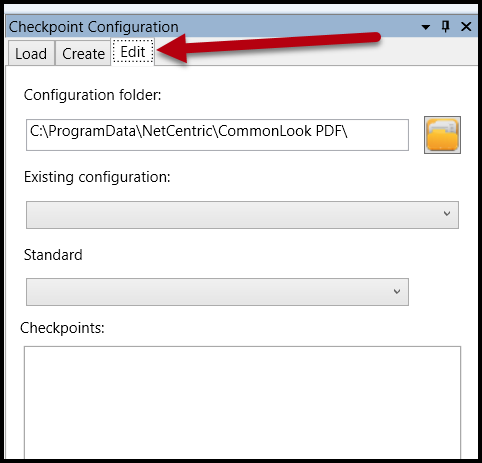
- In the Existing Configuration dropdown menu, choose “Configuration.xml.”
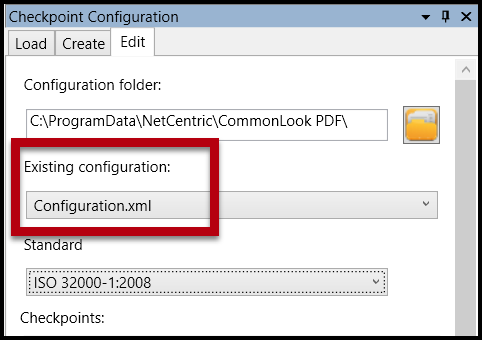
- In the Standard dropdown menu, choose ISO 32000-1:2008.
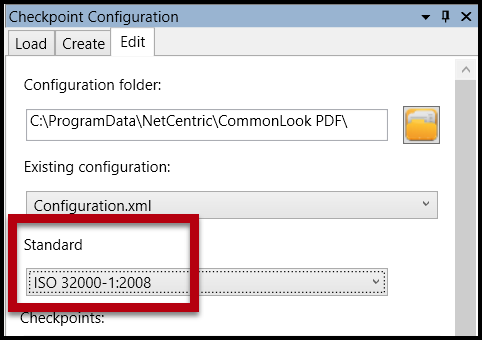
- In the “Checkpoints” section, expand “Link Annotations” and choose “Link Destination.”
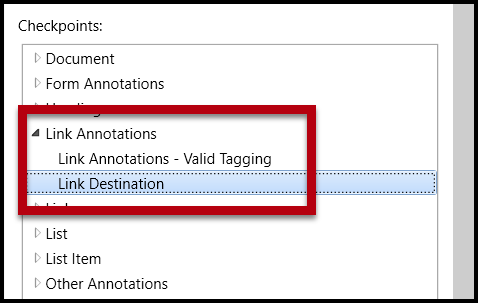
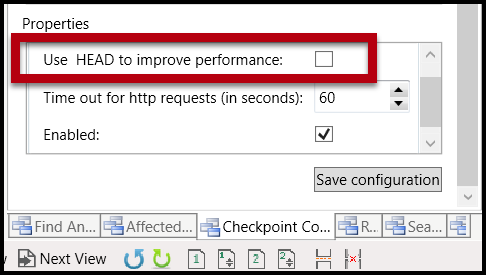
- Scroll down to the Properties section and uncheck the box next to “Use HEAD to improve performance.”
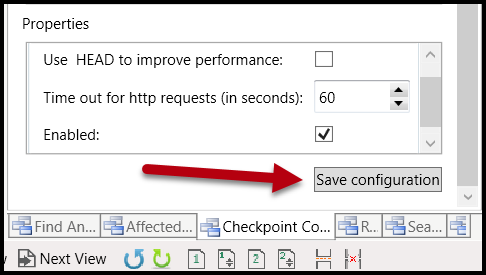
- Navigate to, and select, “Save configuration.”
- Navigate to the Standards panel, choose your standards, and run a verification.
Pro Tip:
In general, using “HEAD” is better for testing links. That’s why it’s checked, in the configuration, by default. However, for a variety of reasons, sometimes this can cause an issue when testing link destinations. Unchecking “HEAD” makes CommonLook PDF use the “GET” option instead. If you know you’re going to have to use “HEAD” in some documents, but “GET” in others, you could create a new Configuration with “GET” as the default.
To do that, instead of editing the “Configuration.xml” you could create a new configuration where “HEAD” is always unchecked. In the Checkpoint Configuration panel, choose “Create.” Name your new configuration (maybe something like “Link Destinations – GET”). In the Standard dropdown menu, choose ISO 32000-1:2008 (that’s what your new configuration will be based on). Then, follow the steps above in the Checkpoints and Properties section. When done, choose “Save and load configuration.” Then go run your verification.
When verifying other documents, in the future, navigate to the Checkpoint Configuration panel, then to the Load tab, choose the configuration you want to test with, and then choose “Revert Configuration.” This’ll load the selected ISO configuration so, when you run your verification, you’re testing with the one you want to use.
Was this article helpful?
That’s Great!
Thank you for your feedback
Sorry! We couldn't be helpful
Thank you for your feedback
Feedback sent
We appreciate your effort and will try to fix the article