Product
Simplified Editor (Web-based CL PDF)
Feature
Lists
Document Element
- Multi-page lists
- Multi-column lists
- Seperated or Broken Lists
Overview
In the Simplified Editor, a list that spans across columns, pages, or other layout breaks will be identified as multiple List elements. These pieces need to be manually connected so the list is read as a single, continuous list rather than several separate ones.
If a container sits between the two pieces of the list, for example, a footnote block at the bottom of a page, you may also need to adjust the reading order before connecting the list. Page number containers rarely cause this issue; it's typically larger containers, such as footnotes, or images, for example, that come into play.
Prerequisites
Manually connect a list whenever it's broken into multiple List elements by a column break, page break, or other break in the document.
If you need to keep another neighboring container so its content is still read (and it is not a Footnote or Page Number container), set the reading order before connecting the list. Connecting the list first, without addressing the reading order, can cause the blocking content to be skipped or read out of sequence.
This process takes place during the Full Document Review step. Before connecting a list, confirm:
- Both pieces of the list are already tagged as List containers, with correct List Items and List Item Levels. See the related List Container and List Item articles in this Knowledge Base for guidance.
- Reading Order has been verified and set as needed.
Steps to Follow
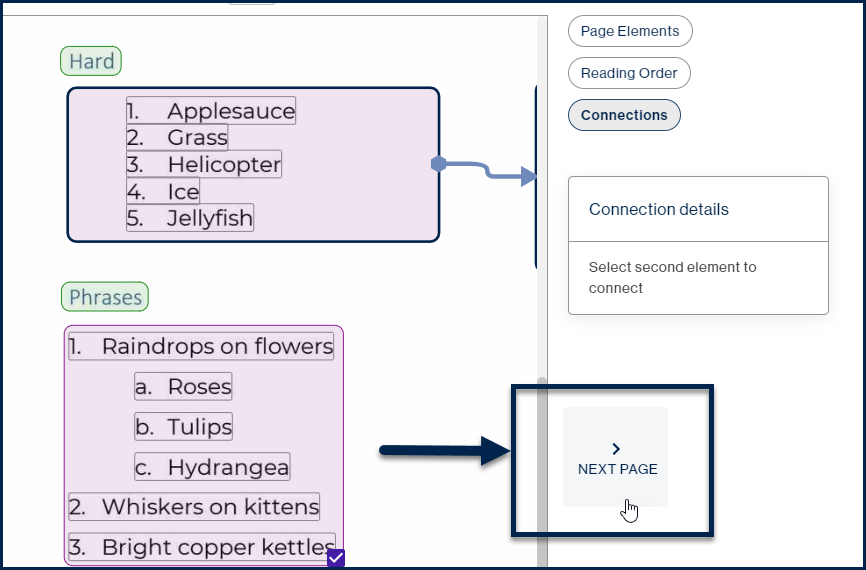
- In Full Document Review, select the Connections button, located at the upper right of the interface, below Page Elements and Reading Order.
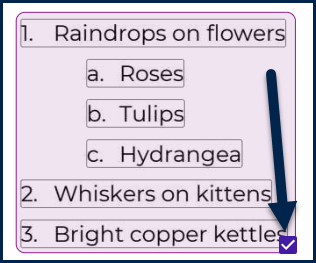
- Check the checkbox at the lower right corner of the first list you want to connect.
- If the second part of the list is on the next page, use the Next Page button to navigate there.
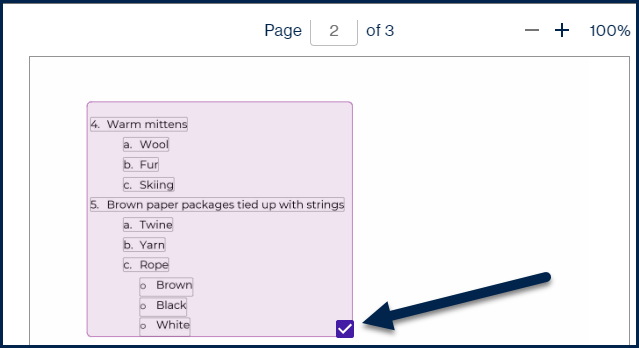
- Check the checkbox at the lower right corner of the second list.
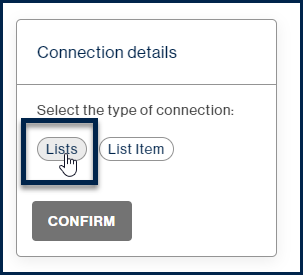
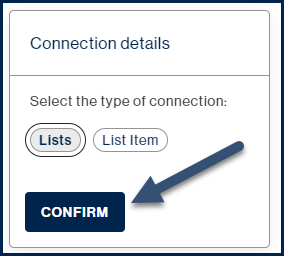
- In Connection Details, choose Lists.
- If the content of a single list item flows across the break, for example, a long list item that continues onto the next column or page, choose List Item instead of Lists in Connection Details.
- Select Confirm to connect the lists.
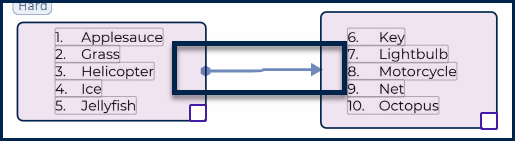
- Once connected, a blue arrow appears on the page view, showing that the list is connected to the next (or previous) one.
Screenshots

Common Problems
- Connection doesn't complete or list reads incorrectly: A container, such as a footnote, is likely blocking the connection. Set the reading order for that container first (unless it is a Footnote or Page Number container), then reconnect the list.
- List reads as two separate lists after connecting: Confirm both pieces are tagged as List containers with correct List Item Levels before connecting. Connections cannot fix incorrect underlying tagging.
Frequently Asked Questions
Do I need to change the reading order before connecting every list?
No. Reading order only needs to be set first when a container you want to keep, such as a footnote, sits between the two pieces of the list. Footnote and Page Number containers typically don't require this step.
What's the difference between choosing "Lists" and "List Item" in Connection Details?
Choose Lists when you're connecting two separate list pieces, such as a list continuing on the next page. Choose List Item when a single list item's content flows across the break.
Where do I perform this process?
List connections are made during the Full Document Review step, using the Connections button.
Related Articles
Was this article helpful?
That’s Great!
Thank you for your feedback
Sorry! We couldn't be helpful
Thank you for your feedback
Feedback sent
We appreciate your effort and will try to fix the article